
Write the shot once. Render it with every model.
Studio is the part of Forge that makes images and films. It puts twenty image and video models in one panel, shows the price before every take, and cuts the takes into a film on one timeline.
The real app · demo data
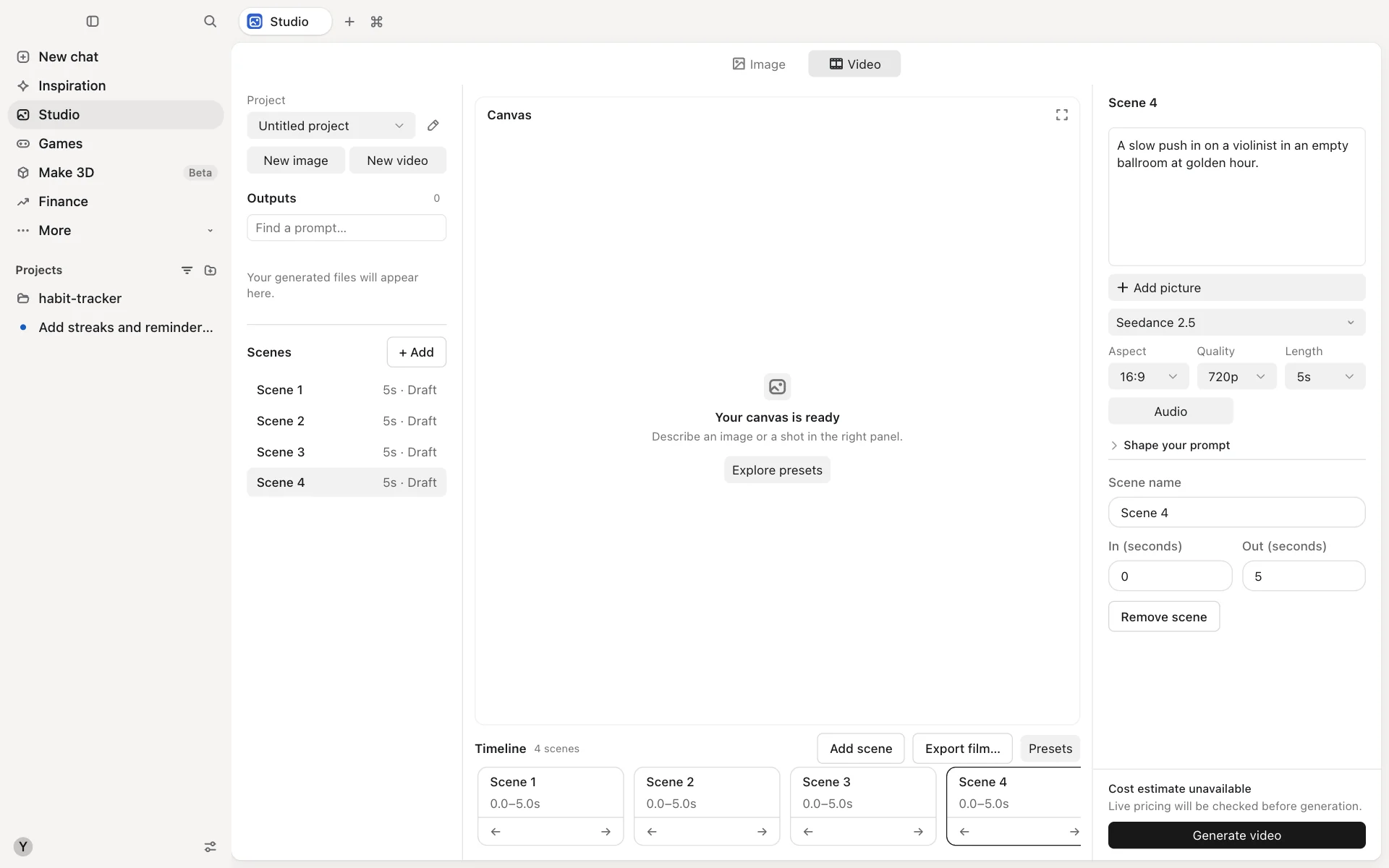
This is Studio itself, running in the page with demo data. Pick a preset, open the model menu, switch between Image and Video, open the Workspace. Generating and exporting need the Mac app; on a phone you see screenshots.
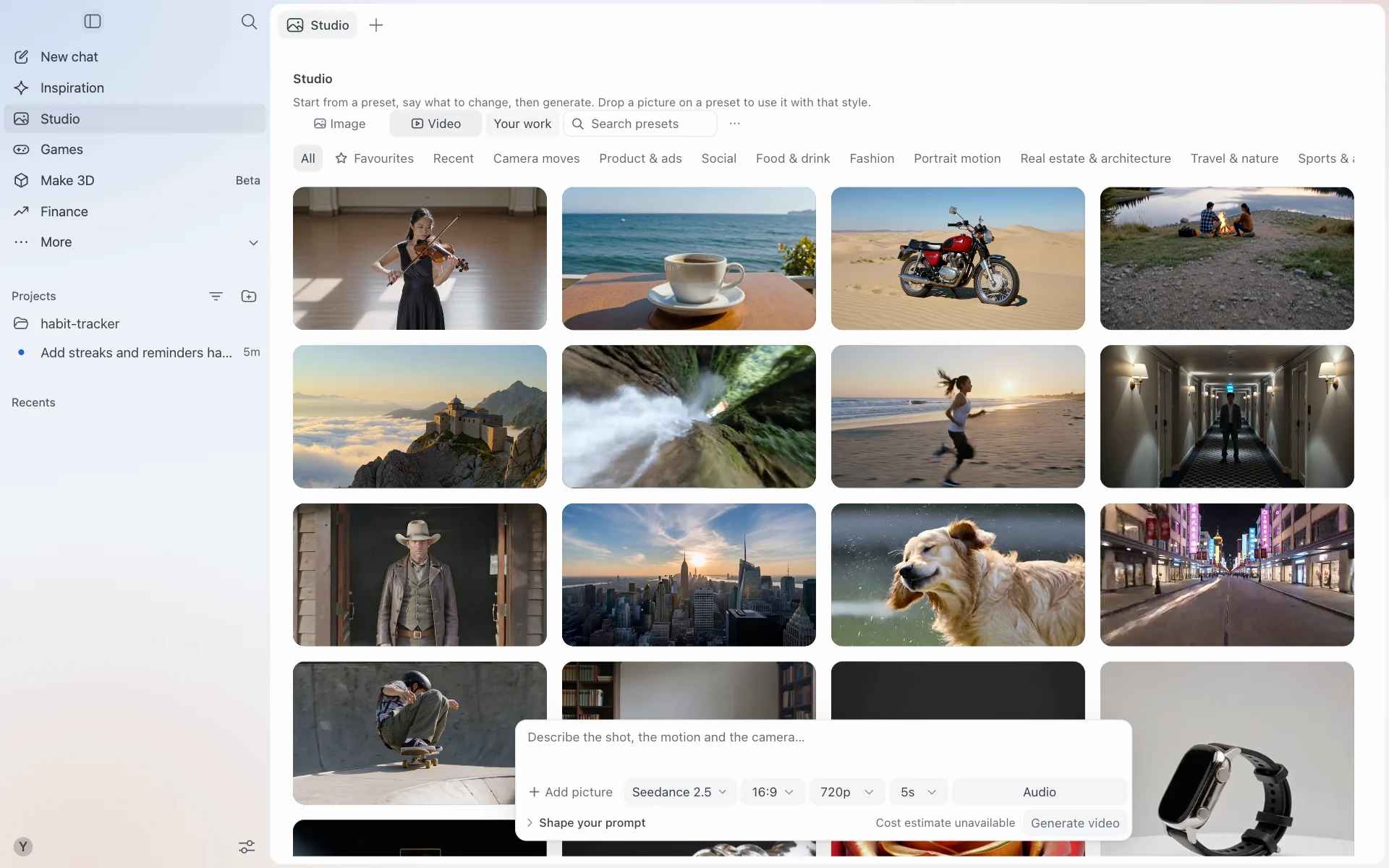
Studio. Twenty image and video models in one panel, the price before every take, and a timeline to cut the film.
Write the shot once.
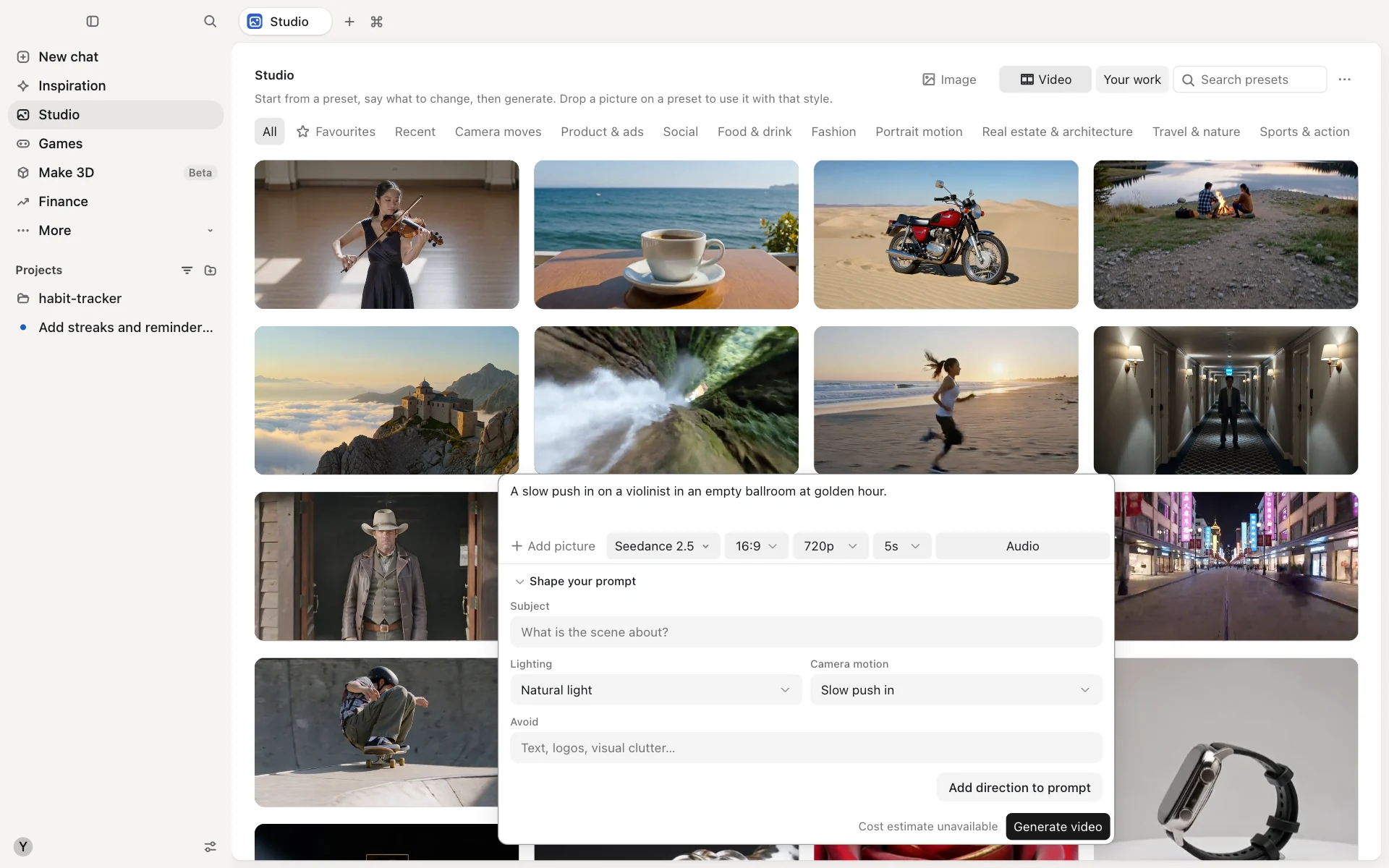
Every take starts from one description of the scene: the shot, the motion and the camera. It is written once and travels with every take, whichever model renders it.
Shape your prompt breaks the description into parts when you want help: a subject, a lighting choice (natural light, soft studio light, blue hour, dramatic rim light, warm practical lights), a camera motion (locked camera, slow push in, camera orbit, tracking shot, wide establishing shot) and what to avoid. One click adds the direction to the prompt.
If you'd rather not start from a blank page, there are 46 video presets and 20 image presets, sorted by format. Each one is an editable starting prompt, not a fixed pipeline. Prompts you like can be saved and reused.
- One prompt for every take of a scene
- Lighting, camera motion and “avoid” as separate fields
- Presets by format: UGC, Brand, TikTok, Instagram, YouTube Shorts, Ads, Product, Cinematic
Many models, side by side.
Studio puts twenty image and video models in one menu. Keep the prompt, change the model, render again. Each scene collects its takes, and the best one goes on the timeline.
- 20Image and video models in one panel
- 46Video presets to start from
- 20Image presets to start from
- 30 fpsMP4, H.264 timeline export
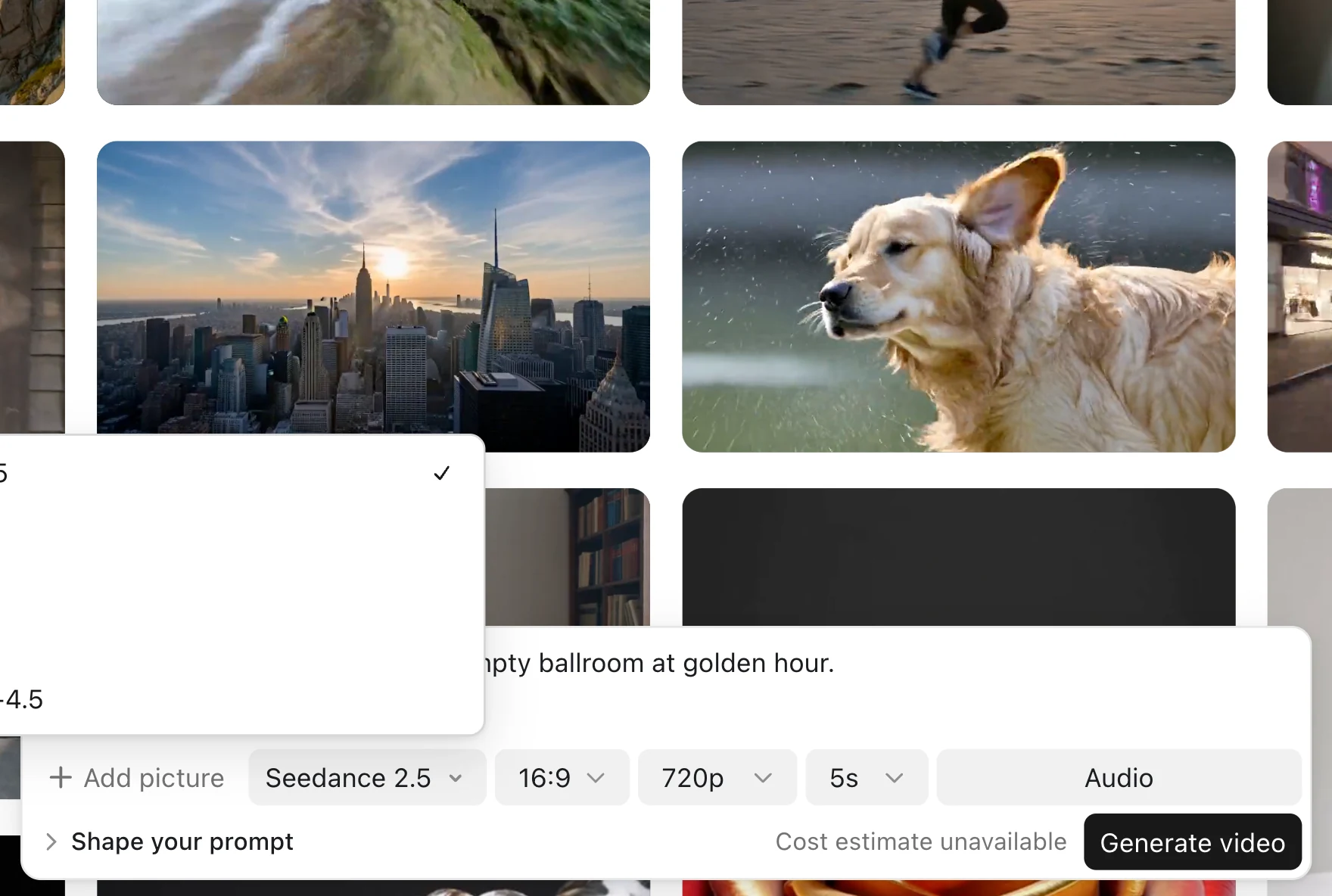
Each model brings its own settings
The panel only offers what the chosen model can do. Video models take an aspect (16:9, 9:16 or 1:1), a quality (720p or 1080p), a length and audio. Image models take an aspect and 1K or 2K.
Image takes can be compared version against version in the canvas, and a new variation is one click.
| Model | Maker | Makes | Lengths | Quality |
|---|---|---|---|---|
| Seedance 2.5 | ByteDance | Video | 5s, 10s | 720p, 1080p |
| Veo 3.1 | Video | 4s, 8s | 720p, 1080p | |
| Kling 3.0 Pro | Kuaishou | Video | 5s, 10s | 720p, 1080p |
| Sora 2 Pro | OpenAI | Video | 4s, 8s, 12s | 720p, 1080p |
| Runway Gen-4.5 | Runway | Video | 5s, 10s | 720p, 1080p |
| GPT Image 2.5 | OpenAI | Image | — | 1K, 2K |
| Nano Banana Pro | Image | — | 1K, 2K | |
| FLUX.2 Max | Black Forest Labs | Image | — | 1K, 2K |
The price before every take.
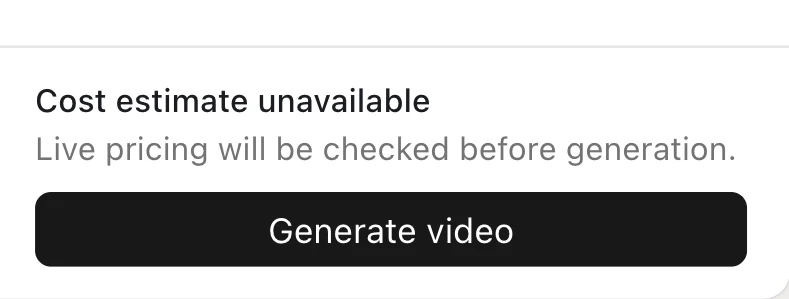
Video costs real money, so Studio never asks you to guess. The estimate for the exact settings sits right above the Generate button, and it is checked again when you change the model or its settings.
Generation runs on your Forge account when you are signed in, or through your own OpenRouter key if you add one in Settings. Each take is billed to whichever runs it.
If a request can't be confirmed, you send it again and Studio retries the same request. It is not run twice.
The screenshot was taken without live pricing, so the panel reads “Cost estimate unavailable” rather than showing a made-up number.
Cut it on one timeline.
Open the Workspace and a project becomes a list of scenes. Each scene keeps its own prompt and its own takes. The takes you keep land on the timeline in scene order.
Trim to the frame
Add a scene
Each scene has a name, a prompt, its settings and a length.
Step frame by frame
‹ Frame and Frame › move one frame at the clip's own frame rate.
Set in, set out
Mark the in and out points at the playhead, or type them in seconds.
Reorder
Arrows on each card move a scene earlier or later on the timeline.
Export one film.
Export renders the timeline as one file, keeping the scene order and every trim. The encoding is done by FFmpeg on your Mac.
- Container
- MP4
- Codec
- H.264
- Frame rate
- 30 fps
- Keeps
- Scene order and trims
- Resolution
- First clip's size, up to 1080p or up to 720p
- Single takes
- Save the original file exactly as the provider sent it
How the launch film was made.
Our launch film was made this way: one description per scene, several models per description, and the best take of each scene cut together on one timeline.
- One
Write each scene once.
- Many
Render it with several models.
- Best
Keep the best take per scene.
- Cut
Trim, order, export one MP4.
Questions
Is Studio a separate app?
No. Studio is one part of Forge, the Mac app, next to Build, Research, Games and the rest. Download Forge and it is there.
Which models can I use?
Twenty image and video models, including Seedance 2.5, Veo 3.1, Kling 3.0 Pro, Sora 2 Pro, Runway Gen-4.5, GPT Image 2.5, Nano Banana Pro and FLUX.2 Max.
How do I pay for generation?
With your Forge account when you are signed in, or through your own OpenRouter key if you add one in Settings. Every take shows its estimated cost before it runs.
What do I need to use Studio?
The Forge Mac app, and a Forge account or your own OpenRouter key for generation. Exporting a timeline uses FFmpeg on your Mac.
Where do the preset previews come from?
From the public Higgsfield catalog. They show a style, not the exact result, and they never appear in your own outputs.