
Work that starts itself.
Automations run on a schedule, when a file in your project changes or when a page you watch changes. Briefings, reviews and page checks happen without you, and every output is kept, queued and searchable.
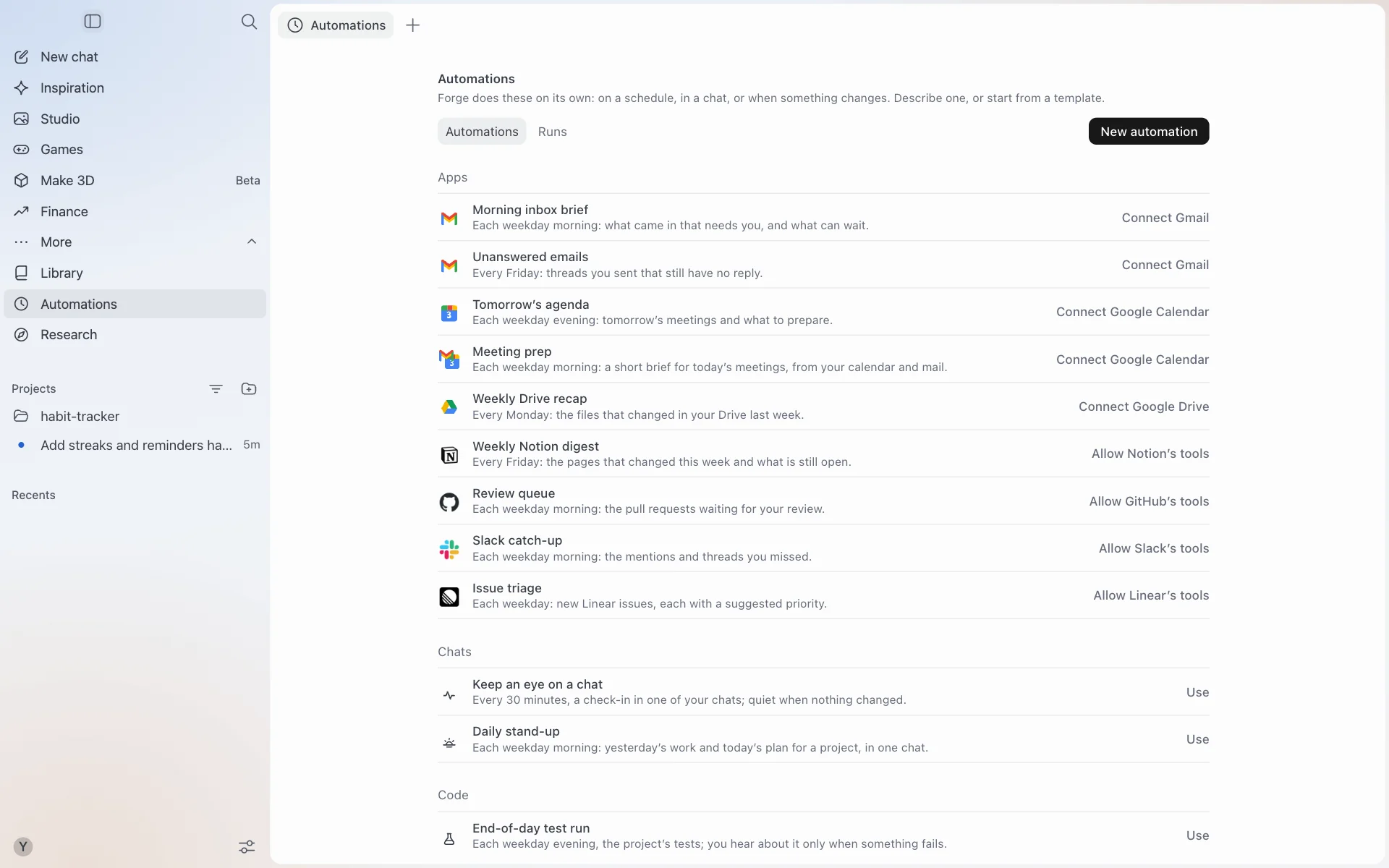
Automations. Runs on a schedule, a file change or a page change, and keeps every output.
A week of automations
Three triggers.
One quiet week.
A briefing every morning at 09:00, a review when README.md changes and a summary when a release page shows a new version. Watch what happens on the night Forge is closed.
Three ways to start
A time, a time zone, the days.
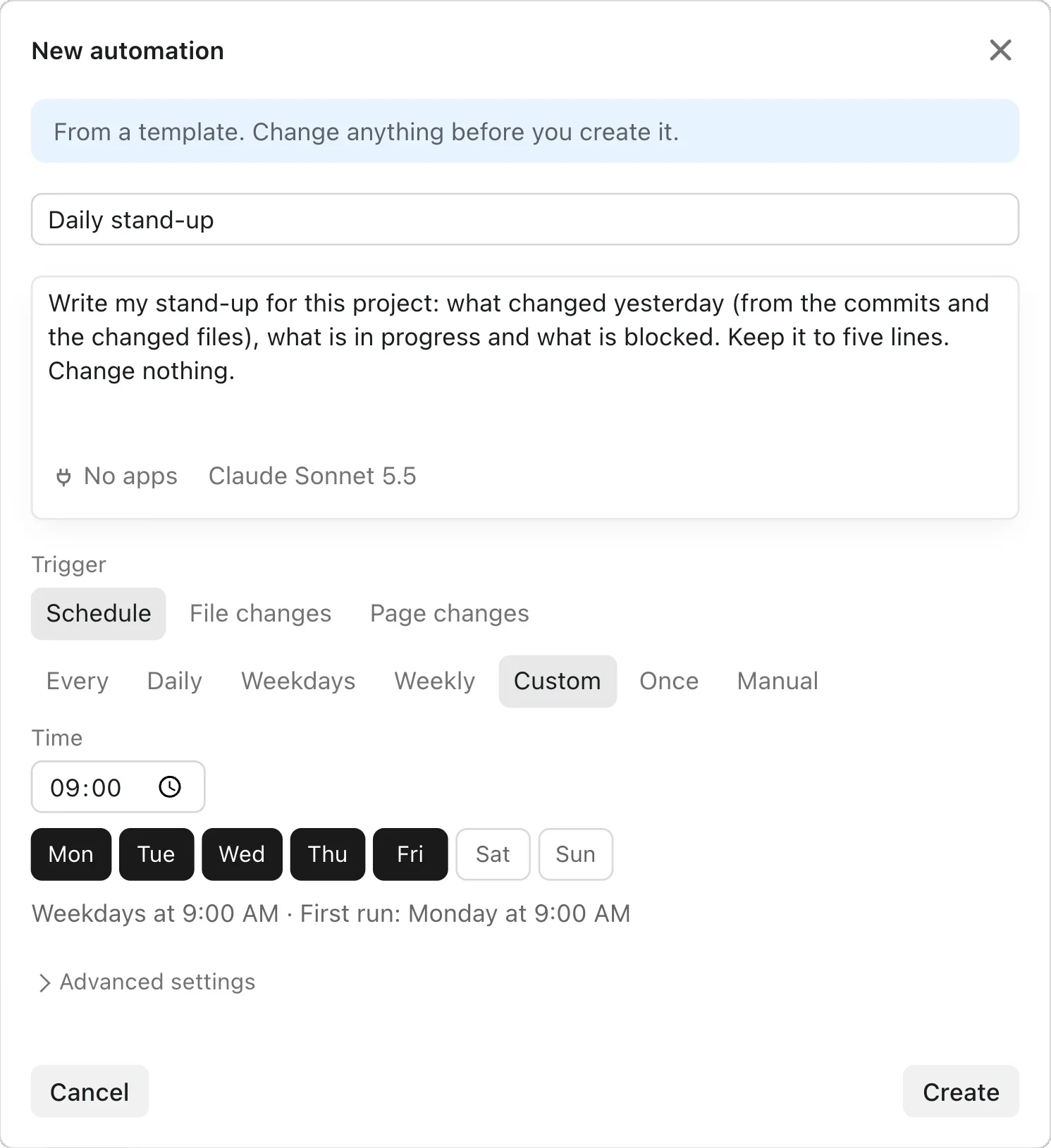
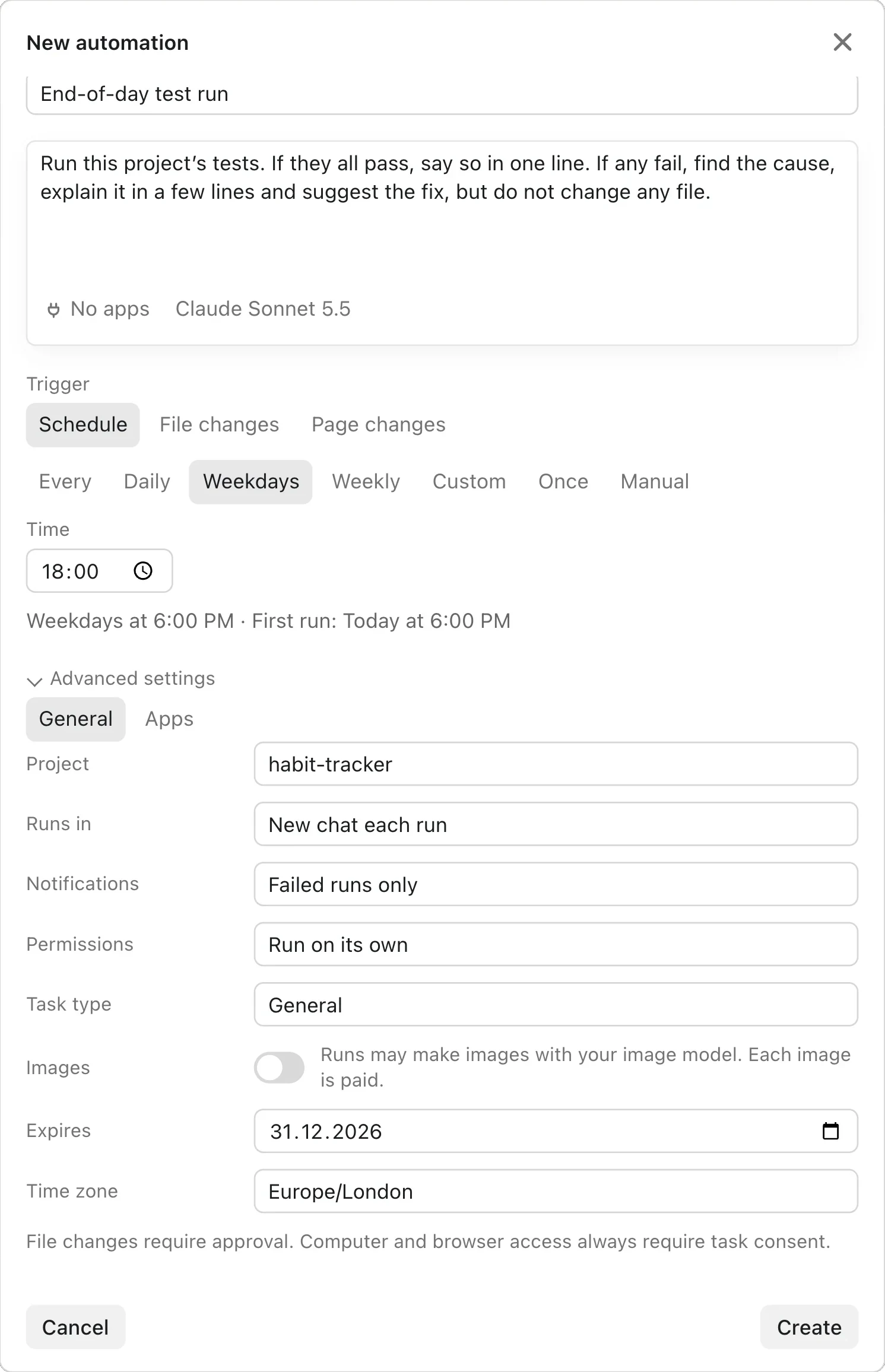
Pick the time, the time zone and the days it repeats on, every day of the week ticked to start with. The run happens in the project you choose, in a separate conversation or in the same one each time.
- Time
- 09:00
- Repeat on
- Mon · Tue · Wed · Thu · Fri · Sat · Sun
- Run in
- Separate or same conversation
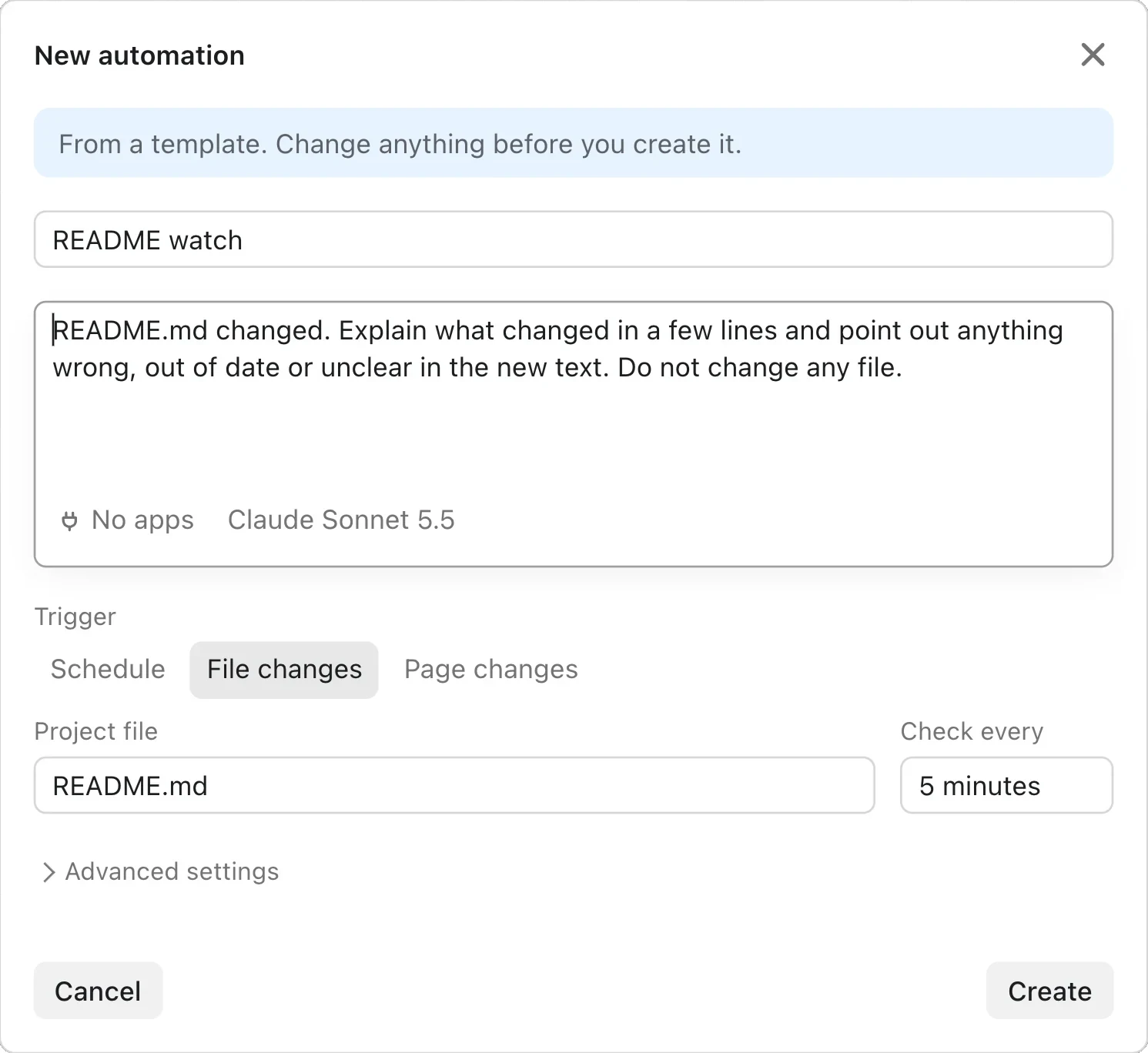
A file in your project, checked on a beat.
Name a file in the project, such as README.md, and how often to look: from every minute to once a day. When it has changed since the last look, the run starts: in the app's example, a review that explains the changes.
- Project file
- README.md
- Check every
- 1, 5, 15 or 30 minutes · 1, 6 or 24 hours
- Example
- Review the changes · Changes, explained
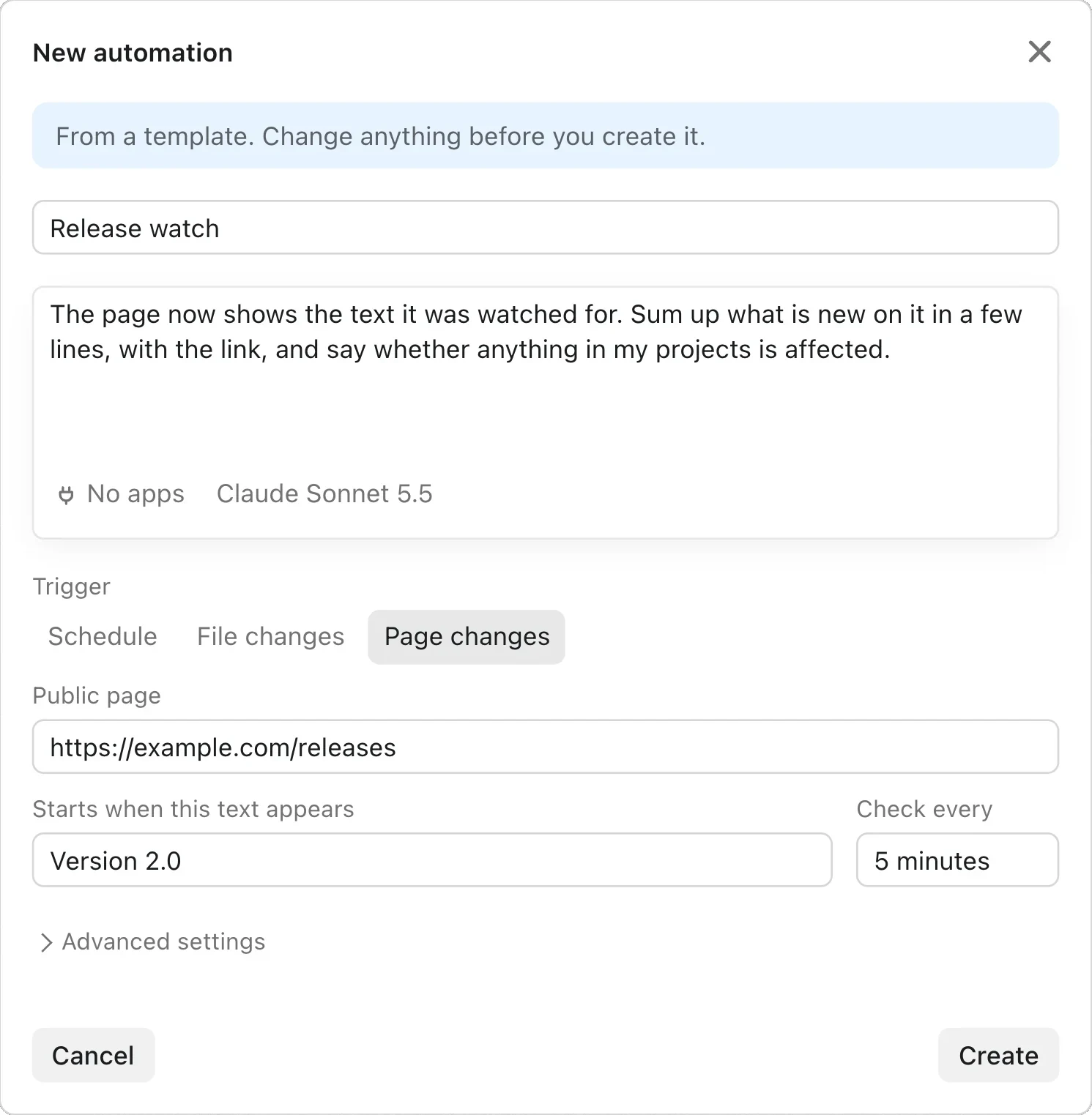
A public page, and the words you're waiting for.
Give the address of a public page and the text that should start the run, like Version 2.0
on a releases page. Forge looks on the beat you set; in the app's example, the run observes, compares and summarizes the release.
- Public page
- https://example.com/releases
- Starts when this text appears
- Version 2.0
- Example
- Release summary · Observe · compare · summarize
Screenshots of the form in the real app, with its own example values.
What runs
-
Briefings
Recurring work given a time: summarise what changed and have the brief waiting when you sit down.
-
Reviews
When a project file changes, Forge reads the change and explains it, in the project it belongs to.
-
Page checks
A public page is watched for the words you named. When they appear, Forge observes, compares and summarizes.
The three pairs are the app's own examples on the Automations page.
Each run is a full Forge task.
Under Advanced settings an automation gets its task type, its model and an optional end date. It can use the plugins you connected, and nothing more.
- Task type: General, Games or Research
- Any model in the menu, from Claude Sonnet 5.5 to DeepSeek V4.1 Flash
- Only connections you have already allowed, up to eight MCP servers per task
- File changes require approval; computer and browser access always require task consent
- Claude Sonnet 5.5
- Claude Opus 5.5
- Claude Fable 5.1
- GPT-6 Astra
- GPT-6.1 Sol
- GPT-6 Luna
- Gemini 3.8 Flash
- Grok 4.7
- Kimi K3
- Qwen3.8 Max Prime
- GLM 5.3 Prime
- DeepSeek V4.1 Flash
Every output is kept, queued and searchable.
- Kept
In your history
Each run is a task like any other. Deleting an automation leaves its past tasks in your history.
- Queued
Under Updates
The Updates tab lists your completed and running automations, next to Planned.
- Searchable
With your chats
Runs land in conversations, and conversations are found from Search chats in the sidebar.
- Yours to run
Run now, edit, delete
Every automation shows when it runs next, can be run on the spot and can be changed or removed.
The rules, in the app's own words
Runs while Forge is open. Missed schedules wait for you; monitoring starts with a baseline.
- Runs while Forge is open.Automations run on your Mac, inside Forge. When the app is closed, nothing runs.
- Missed schedules wait for you.A time that passes while Forge is closed isn't lost: the run waits, and the automation shows how many were missed.
- Monitoring starts with a baseline.The first look at a file or a page records how it is. Only a change after that starts a run.
The three triggers side by side
| Trigger | Watches | Starts when | How often |
|---|---|---|---|
| Schedule | The clock, in your time zone | The time comes on a day you ticked | On the days you choose |
| File changes | A file in a project | The file has changed | Every 1 minute to 24 hours |
| Page changes | A public page | The text you named appears | Every 1 minute to 24 hours |
Questions
Does Forge have to be open?
Yes. Automations run while Forge is open. A schedule missed while it was closed waits for you instead of being dropped.
Will the first check of a page start a run?
No. Monitoring starts with a baseline: the first look records the page or file as it is, and only a change after that starts a run.
Can an automation change my files on its own?
File changes require your approval, and computer and browser access always require task consent, the same as any task in Forge.
Which plugins can an automation use?
Only connections you have already allowed in Plugins, up to eight MCP servers per task.
Where do the results go?
Into the Updates tab and your history, in a separate conversation or the same one each time, as you set it.
What is the app on this page?
The real Forge app, running in your browser with demo data: one sample project with one finished Build run, plus the app’s own screens. It runs no model, touches no files and sends nothing you type anywhere. Some screens load public logos and preview images from their own hosts. On a phone you see screenshots of the same screens.